


If you’ve ever heard someone talk about SEO (Search Engine Optimization), then you’ve likely heard that conversation paired with the talk of things like Google Search Console vs. Google Analytics. And if you’re not the techy type, it might’ve made your eyes glaze over. Trust us, we get it!
In our brand and web design studio, we’re all about the creative, cutesy side of business too. But the not-so-cute side (like SEO and data tracking) is just as important if you want your website to be found by the right people.
That’s where tools like Google Analytics and Google Search Console come in. They help you see which keywords you’re ranking for, how people are finding your site, and what content is actually driving results!
But that doesn’t make it any less overwhelming, especially if you’ve never used tools like this before. They can feel extremely confusing, but once you get the hang of them, we promise they’re as easy as whipping up an Instagram carousel on Canva.
In this blog post we’re breaking down Google Search Console vs. Google Analytics in simple terms, explaining why you actually need both for your website,and then walking you through step-by-step how to set each one up!
Google Search Console VS. Google Analytics (And Why You Need Both)
Before diving into the step-by-step of each tool, let’s break down the difference of Google Search Console vs. Google Analytics. These tools often get mentioned together, but they actually serve very different purposes.
To put it simply, Google Analytics tells you about user behavior once people are already on your site.
Think things like: how many visitors you get, how long they stay, which pages they look at, and whether they take specific actions like filling out a form or making a purchase.
All of these things are important because they help you understand not just how much traffic you’re getting, but whether that traffic is actually meaningful.
For example, if people are landing on your site and bouncing right away, that’s a sign your content or design might need improvement. On the flip side, if you see visitors spending time on key pages or moving through your sales funnel, you’ll know your site is doing its job and you can work to make those pages even better!
Google Search Console, on the other hand, tells you about how your site shows up in Google search results.
It helps you see which keywords people use to find you, how often your site appears in search results, your click-through rate (CTR), and whether Google has any trouble indexing your site. These things matter because they give you a clear picture of how discoverable your site actually is – it’s the SEO part of it all!
With Search Console, you’ll know if your content is showing up for the right searches, whether people are motivated to click through, and if there are any technical issues holding your site back from ranking higher.
In other words:
- Google Analytics = what’s happening on your site.
- Google Search Console = how your site is performing in Google search.
Soooo, why do you need both? Because when working together, they give you a full picture that you can use to make informed decisions for your website and content.
In its simplest form, Google Analytics shows you what people do once they land on your site, and Search Console shows you how they got there in the first place. Using both tools side by side allows you to understand your audience, fine-tune your content, and make better decisions for SEO and marketing overall.
Now that you know the difference between Google Search Consolve vs. Google Analytics, let’s move into the technical setup of each one!
How To Set Up Google Analytics For Your Website
Google Analytics gets a bad rap for being complicated, but I promise that setting up Analytics for your website is easier than you think!
Here’s the step-by-step guide to help you do it with ease:
Create a Google Analytics account
- Go to Google Analytics and sign in with your Google account.
- Click “Start Measuring” to create a new property for your website.

Set up your property (aka your website)
- Enter your website name, URL, and other basic info.
- Choose your reporting time zone and currency.
Get your tracking code
- Once your property is created, you’ll receive a tracking ID (also called a “measurement ID” in GA4, the latest version of Analytics).
- This is a small piece of code you’ll need to add to your website.
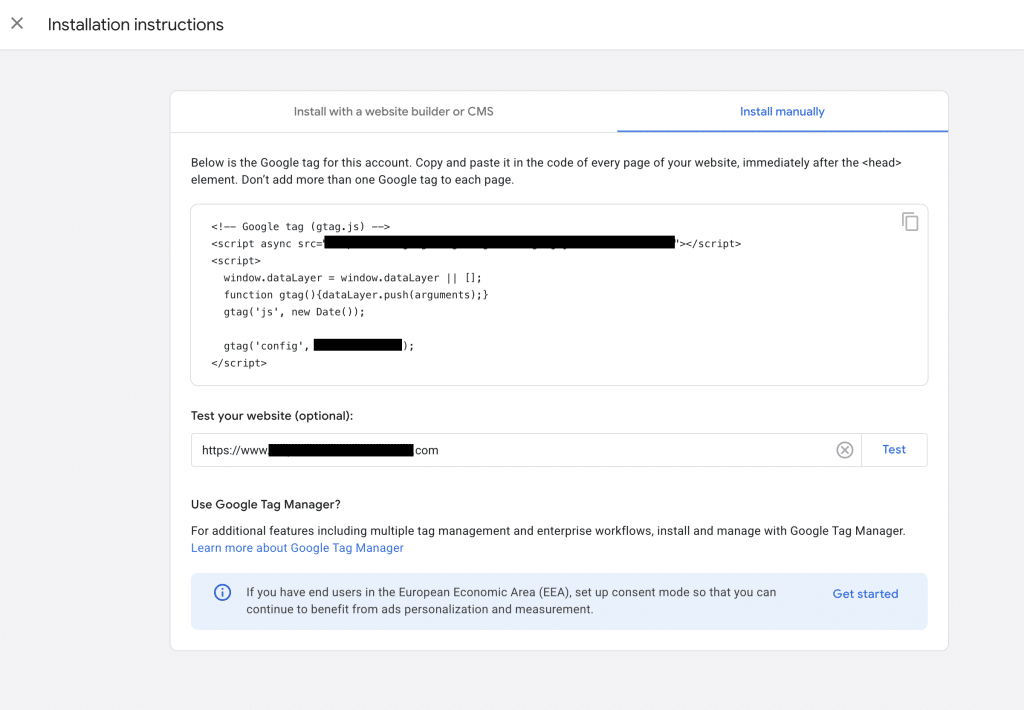
Install the tracking code on your site
- If you’re using WordPress, you can add it through a plugin like Site Kit by Google or Header & Footer Scripts.
- For Squarespace, Shopify, or other platforms, paste the code into the site settings under “Analytics” or “Header Code.”
Verify tracking
- Within 24 hours, you should start seeing visitor data coming through!

How To Set Up Google Search Console For Your Website
Once you’ve set up your Google Analytics, you can move on to setting up your Search Console – because remember: you want to use BOTH!
Here’s the step-by-step guide to help you set up your Search Console:
Go to Google Search Console and sign in with your Google account
Add your property (aka your website)
- Click “Add Property.” When you do this, you’ll have two options:
- Domain – this tracks across all subdomains, like www and blog
- URL Prefix – this tracks only the exact URL you enter (for most people, URL prefix works just fine!)
Verify ownership of your site
- Google needs to confirm that you actually own the website. There are a few ways to do this:
- Add a meta tag to your site’s header
- Upload an HTML file to your site
- Connect via your domain provider
- Or, if you already have Google Analytics installed, you can verify automatically through that account.
Submit your sitemap
- A sitemap helps Google crawl your website more effectively and most website platforms automatically generate one (usually at yourdomain.com/sitemap.xml).
- Copy that link and paste it into the “Sitemaps” section in Search Console.
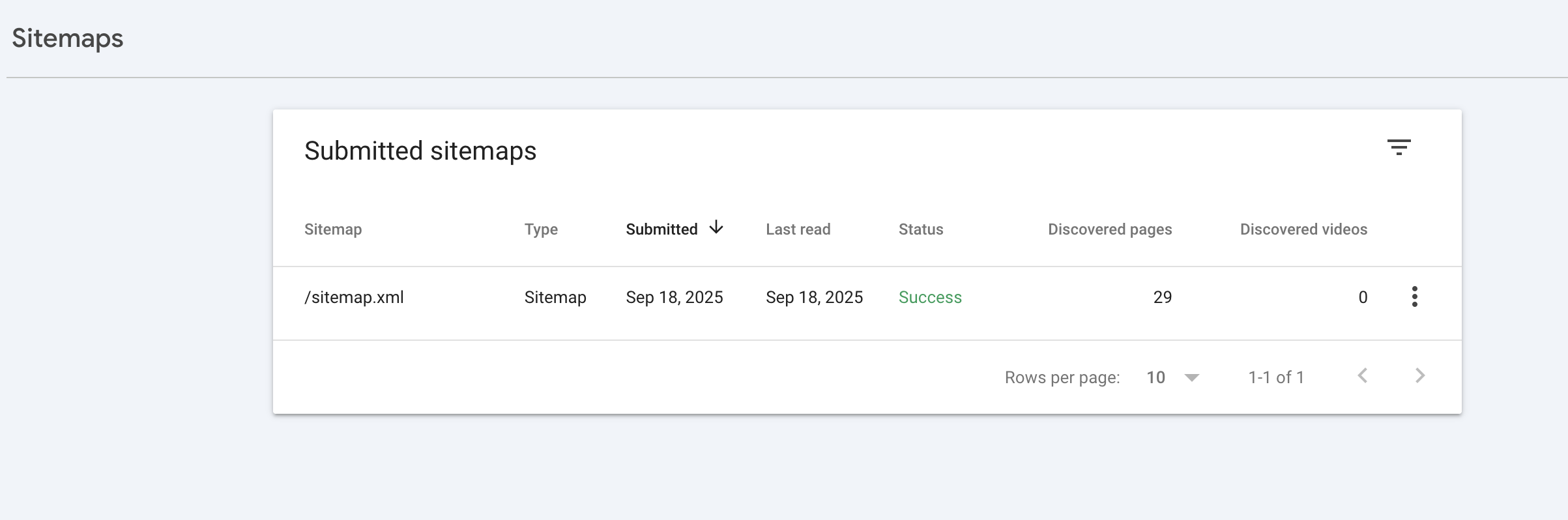
Explore your data
- Once verified, you’ll be able to see your site’s impressions, clicks, average position, and any indexing issues that could be holding you back in search results.
Additional SEO Resources for Private Practices
And there ya have it! Your quick and easy guide to setting up Google Analytics and Google Search Console for your website.
Though these tools might sound intimidating at first, once you get them set up, they’ll become two of your most powerful tools to understand how people are using your site and how they’re finding you in the first place!
If you’re in need of more SEO resources to support your private practice, Studio Adagio has got you covered:
- Why SEO Is The Secret To Therapy Practice Growth
- SEO Blogging Tips For Therapists
- Local SEO For Therapists: How to Attract Nearby Clients
- [FREEBIE] SEO Checklist for Private Practices
And if you’re in search of hands-on support, our SEO strategy services for private practice clinicians were created with you in mind – CLICK HERE to learn more!